
Black Ops 7 Best Settings Guide: Maximize FPS and Eliminate Stuttering
Call of Duty: Black Ops 7 Best Settings: The Ultimate FPS & Visibility Guide
Dominating in Black Ops 7 Best Settings requires more than just raw reflex; you need your hardware to perform at its peak without sacrificing visual clarity. Call of Duty: Black Ops 7 features a new, advanced engine that looks spectacular but can crush systems that aren’t optimized. In a competitive shooter where milliseconds define a winner, visual clutter like cinematic motion blur or poorly managed VRAM can be the difference between a high kill-streak and a frustrating respawn.
The Gamers Guides technical team has spent countless hours testing the game’s graphical demands, analyzing VRAM scaling, and conducting real-world benchmarks on dozens of different PC configurations. Our objective is to find that perfect “sweet spot”: maximum frame rates combined with the sharp visual intelligence needed to spot an enemy head glitching at a distance. Here is the definitive guide to your Black Ops 7 Best Settings.
Graphics: The Optimal Black Ops 7 Best Settings for Max FPS
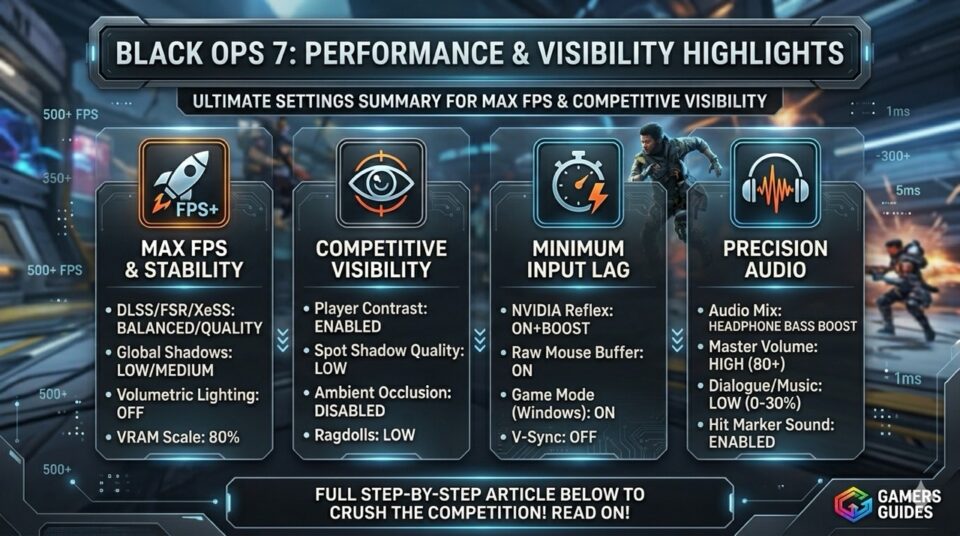
The graphics menu is where most players get lost. The sheer number of sliders and options can be overwhelming, but through our testing, we have identified which parameters genuinely affect FPS and visual clarity. Here is our tested configuration for maximum competitive performance:
- Display Mode: Full Screen Exclusive. Essential for minimizing input lag. Borderless Windowed can add up to 10ms of delay.
- Upscaling / Sharpening: NVIDIA DLSS (set to Balanced) or FidelityFX CAS. DLSS is a key part of the Black Ops 7 Best Settings for RTX owners. If you lack tensor cores, FidelityFX CAS set to 60-80 strength provides exceptional sharpness.
- VRAM Scale: 80% or 90%. This ensures the game leaves some system memory for other background processes, preventing full-system lockups or stuttering.
- Texture Resolution: Medium. Setting this to “Low” creates visual noise, making enemies harder to track. “Medium” balances performance and clarity.
- Shadow Quality: Low. Shadows are a primary FPS killer in Black Ops 7. Keeping them low is non-negotiable for competitive play.
- Ambient Occlusion: Disabled.
- Global Illumination & Volumetric Lighting: OFF. These look realistic but hide enemies in shadows and reduce framerate. Removing them is a cornerstone of the Black Ops 7 Best Settings philosophy.
- Model / Effect Detail: Medium. High effects can reduce FPS during airstrikes and explosives, so keep them controlled.
- NVIDIA Reflex Low Latency: Enabled + Boost. This setting minimizes system-wide input latency, making mouse clicks feel truly synchronous with your action.
Tactical Performance: Vision and Audio
Beyond graphics, true optimization extends to how your system translates visual and audio information into tactical intelligence.
- Motion Blur & Film Grain: Disabled (0.00). Motion blur creates visual smearing, and film grain introduces visual noise. Disabling both is mandatory in any Black Ops 7 Best Settings profile to ensure a clean, crisp image.
- Field of View (FOV): 105 to 110. While 120 FOV gives the widest view, 105-110 strikes the best balance, making distant targets slightly larger and easier to track without causing fisheye distortion.
- Color Filters: Go to Interface and set the Color Filter to “Filter 2” and the Target to “World.” This makes colors in Black Ops 7 pop, making player models easier to distinguish against map environments.
- Audio Mix: Headphone Bass Boost or PC. Both mixes accentuate the subtle frequencies of footsteps over the deafening bass of explosions.
Conclusion
Finding your ideal Black Ops 7 Best Settings is an iterative process, but the template above provides the most stable foundation for competitive success. By eliminating performance bottlenecks and maximizing visual intelligibility, you give your reflexes the platform they need to succeed. Head to the multiplayer or zombies queue, test these settings, and focus on your gameplay, knowing your PC is running at its absolute competitive potential.
External Resources
- Official Game Website: Call of Duty: Black Ops 7 Official Site
Similar Guides on Gamers Guides
Check out our other expertly curated guides to maximize your gaming experience:

Gamers Guides helps you save hours of searching through guides, videos, and forums.
Every article is based on real gameplay experience, combined with research from official updates and the gaming community.
Our goal is simple: deliver clear, useful guides so you can improve faster and make better in-game decisions.